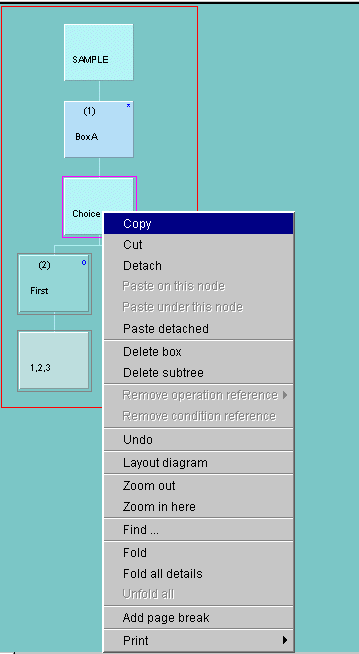
To demonstrate copying and pasting, assume that you are starting with this structure:

To copy part of the tree, right-click on the box at the top of the part you want
to copy and select 'Copy' from the pop-up menu
that appears:
You can then paste the copied subtree in three different ways:
- Under another box on the tree
- On another box on the tree (so that the top box of the pasted subtree replaces the one you paste onto)
- As a detached 'floating tree' that isn't connected to the main one.
All of these options can be selected by the right-click pop-up
menu. If you were to paste UNDER the box named BoxB, the result would be:
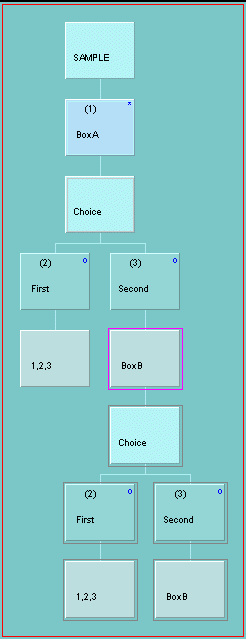
Alternatively, if you were to paste ON the box named BoxB, the result would be:

If you decided to paste as a detached floating subtree the result would be:
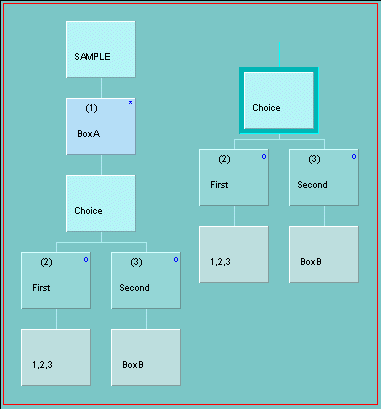
You can drag a floating tree around by its topmost box, which is highlighted with a
green surround. Notice also that a floating tree has a short 'pole' sticking out of its
topmost box. The pole is important because you can use it to attach the floating tree
back onto the main one. Drag the floating tree around so that it's pole is just under BoxB
on the main tree, and you should see a small rectangle appear under that box:
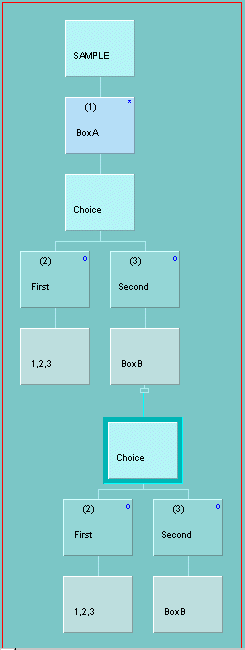
The small rectangle indicates that the floating tree's pole is over a hotspot
that allows it to be attached. If you drop the floating tree in this position,
it will be attached under BoxB. The effect is as if you had pasted under BoxB.
Another way to create a floating tree is to right-click on a box and use the 'Detach' menu item. This forms a
floating tree out of a subtree removed from the main one.
Note that you can have many floating trees in the Tree
Editing Area at the same time, and most of the things that you can do to
the main tree can also be performed on floating trees. For example you can detach
part of a floating tree to form another, or attach one floating tree to another
using its pole.